Simple Ergonomic Desk Setup: From Cluttered Corner to Focused Workspace
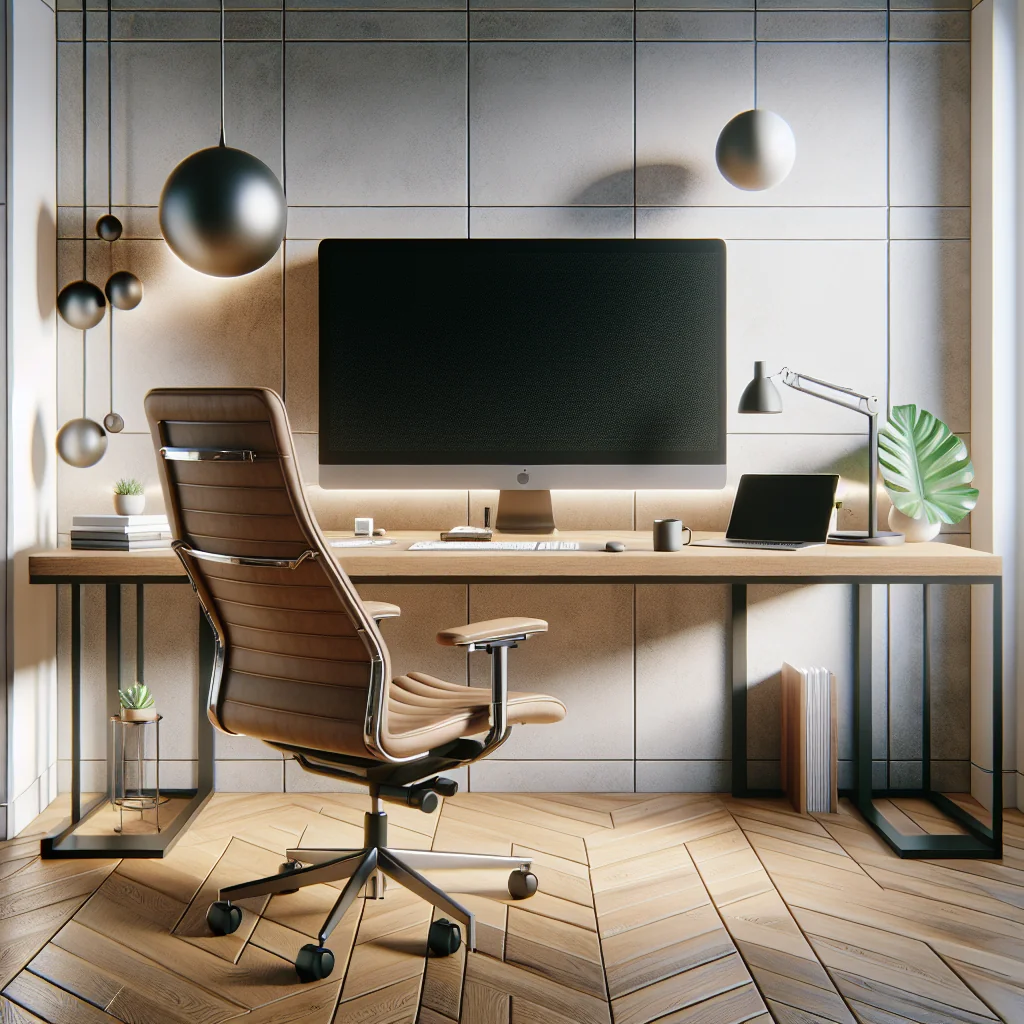
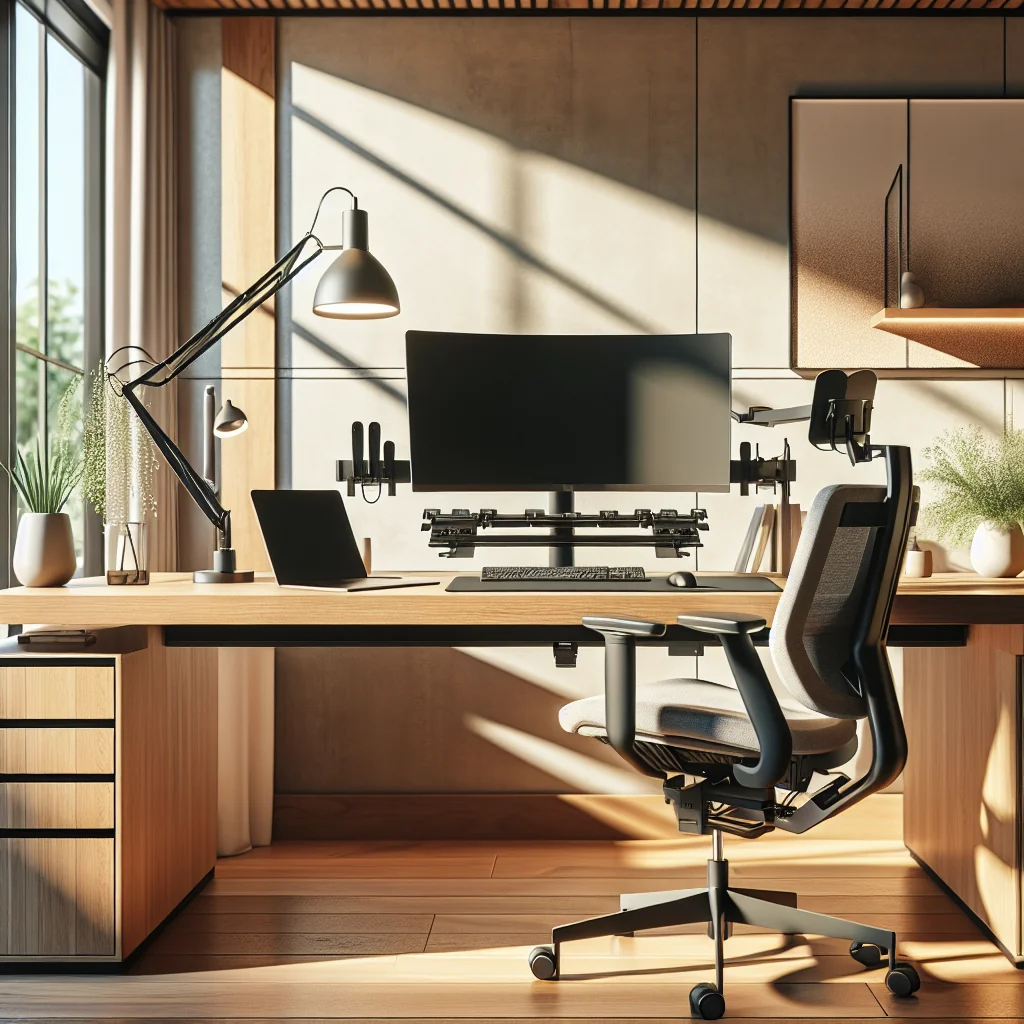
A simple ergonomic desk setup does not need a large room or costly gear. With a few smart choices, you can turn a small desk setup into a comfortable, focused workspace that looks clean and supports long work sessions. This guide walks through how to set up a desk that blends ergonomics, minimalism, and productivity tools like a Pomodoro timer or flow timer.
Core Principles of a Simple Ergonomic Desk Setup
Before adjusting chairs and monitors, decide what “simple” means for your workspace. For most people, a simple ergonomic desk setup means fewer items, clear surfaces, and gear that supports healthy posture. Every object should earn its place by helping comfort, focus, or joy.
Think of the desk as a tool, not a display shelf. Keep the surface open enough for free arm movement and note-taking. Choose neutral colors and a limited palette so your eyes rest on the work, not the clutter. A calm visual field often leads to calmer thinking.
Ergonomics focuses on how your body meets the desk, chair, and screens. Aim for neutral joint positions: straight wrists, relaxed shoulders, and a neck that faces forward instead of bending or twisting. Small changes in height or distance can remove a lot of daily strain.
Maintaining Your Simple Ergonomic Desk Setup
Once the desk feels right, small weekly habits keep it functional and pleasant. At the end of each week, clear stray items, wipe the surface, and check that your chair, monitor, and keyboard have not drifted out of position. Regular review prevents slow slide back into clutter and discomfort.
Quick Weekly Check for Comfort and Posture
Use a short check-in to spot early signs of strain before they become problems. Pay attention to how your body feels during and after work, not just while you sit. Subtle tension is a sign that some part of the setup needs a small tweak.
Here is a simple example table you can use as a weekly micro-checklist:
| Body signal | Likely cause at your desk | Simple adjustment to try |
|---|---|---|
| Neck or upper shoulder tightness | Monitor too low, high, or off to one side | Center the screen and set the top edge at eye level |
| Wrist or forearm soreness | Keyboard too high or angled up; mouse too far away | Lower the keyboard, keep it flat, and move the mouse closer |
| Lower back ache | Chair too low or high; no back support | Adjust seat height and add a small cushion at the lower back |
| Tired or dry eyes | Screen too bright or too close | Reduce brightness and keep the monitor at arm’s length |
Review this table once a week and make one small change at a time. Regular, gentle tweaks are easier to keep than rare, major overhauls and help your body feel better over months and years.
Keeping Your Workspace Simple and Supportive
Notice any new aches or tension that appear during the week. If your neck feels tight, adjust monitor height or distance. If your wrists feel sore, check keyboard angle and mouse grip and slow down your typing speed for a while.
A simple ergonomic desk setup is not about perfection or luxury gear. It is about thoughtful choices: where you sit, how your screens sit, what your hands touch, and how your environment supports focus. With those pieces in place, even a small, minimalist desk can become a powerful, steady workspace.
Home Office Setup Tips for Small Spaces
Many people build a home desk setup in a bedroom, living room corner, or shared space. Even in tight areas, you can keep ergonomic basics and a clean look with a few smart choices. The goal is to protect posture without making the room feel cramped.
Space-Saving Ergonomic Ideas
Small spaces need furniture and gear that pull double duty. The table below gives quick examples of simple ergonomic desk setup choices that work well in compact rooms.
Examples of compact ergonomic choices for small home offices
| Challenge | Simple ergonomic solution |
|---|---|
| Very shallow desk | Use a single monitor and a compact keyboard to save depth. |
| Cluttered work surface | Add wall-mounted shelves above the desk for books and decor. |
| No room for a large chair | Pick a foldable chair or stool that slides fully under the desk. |
| Room feels cramped and dark | Choose light desk colors, open-leg designs, and soft, even lighting. |
Using small, clear changes like these keeps posture healthy while the room stays airy and calm. Focus on depth-saving gear, vertical storage, and light visual elements so the workspace feels open instead of squeezed in.
Visual Tricks to Make a Small Desk Feel Bigger
For a small room desk, choose light colors and open-leg designs. This makes the space feel larger and less cramped, especially when combined with soft, even office lighting that reduces glare and eye strain.
Keep cables tidy, limit desk accessories to daily essentials, and use matching storage boxes on shelves. These simple details help the small office blend into the room while still giving you a focused, ergonomic place to work.
How to Set Up a Desk: A Simple Step-by-Step Flow
To bring all these ideas together, follow a clear order. This keeps the process from feeling confusing and helps you build an ergonomic, simple desk setup that fits your space and your work style.
Quick Reference: Simple Ergonomic Desk Setup Targets
Use this mini table as a guide while you move through the steps. It gives rough targets that work for many body types.
| Element | Simple target | Micro-example |
|---|---|---|
| Chair height | Feet flat, knees slightly below hips | Lower the chair until heels touch the floor |
| Monitor distance | About arm’s length from your face | Reach forward; fingertips should touch the screen |
| Monitor height | Top of screen at or just below eye level | Stack books under the monitor until text centers in your natural gaze |
| Keyboard position | Centered with your body, close to desk edge | Spacebar aligned with your belly button |
| Mouse position | Same height as keyboard, elbow near your side | Move mouse pad so your upper arm barely moves |
Once you know these targets, you can walk through the setup steps with more confidence and adjust each element until your body feels relaxed.
- Place the desk and chair: Position the desk where you get some natural light without direct glare, then adjust chair height so feet rest flat and knees are slightly below hips.
- Set up the monitor: Place the main screen at arm’s length, with the top of the display at or slightly below eye level; if using a stacked monitor setup, add the second screen above the first.
- Add keyboard and mouse: Center the keyboard with your body, keep it close to the desk edge, and place the mouse at the same height, within easy reach so your elbow stays near your side.
- Arrange lighting: Place a monitor light bar or a desk lamp so it lights the work area without shining into your eyes; add a soft room light to avoid high contrast.
- Manage cables and storage: Route cables behind or under the desk, group them with clips or ties, and limit surface items to daily desk setup essentials.
- Layer in aesthetics: Add keycaps, a desk mat, a plant, or a small art piece, keeping the color palette simple and cohesive.
- Set your productivity tools: Place a Pomodoro timer or set up a flow timer app, and decide on your basic work-break rhythm for the day.
Following these steps once makes future tweaks easier. You can adjust one element at a time, such as monitor height or chair angle, and notice the difference right away in your comfort and focus.
Focus Tools: Pomodoro Timer, Flow Timer, and Productivity Setup
An ergonomic desk is not just about chairs and screens; it also supports how you manage time and attention. A good productivity setup often includes a simple system for deep work and regular breaks.
Using a Pomodoro Timer or Flow Timer
A Pomodoro timer breaks work into short, focused blocks, often around 25 minutes, followed by a brief break. This method helps you start tasks more easily and prevents marathon sessions that strain your body and mind. You can use a physical timer on the desk or a digital one on your screen or phone.
A flow timer is similar but may use longer, flexible sessions that match your natural focus rhythm. For some work, such as coding or writing, longer stretches feel better. The key is to stand, stretch, and rest your eyes at regular intervals, whatever timing method you choose.
The table below gives quick examples of how you can pair timer methods with simple ergonomic actions at your desk.
| Timer method | Typical work block | Break action for ergonomics |
|---|---|---|
| Pomodoro timer | 20–25 minutes focused work | Stand up, roll shoulders, and look 20 seconds at a far object |
| Extended Pomodoro | 40–50 minutes focused work | Walk a few steps, stretch wrists and fingers, relax jaw and neck |
| Flow timer | 60–90 minutes deep work | Change posture, adjust chair height, and do a quick back stretch |
| Micro-sprint timer | 10–15 minutes on a single small task | Sit back against the chair, reset screen distance, blink slowly |
Use these examples as a starting point and adjust the block length and break actions to your body and tasks. The best timer is the one that helps you remember to move, reset posture, and protect your eyes during the day.
Minimalist and Aesthetic Desk Setup Ideas
A simple ergonomic desk setup can still be visually pleasing. Minimalism is less about owning nothing and more about keeping only what supports your work or lifts your mood. The right mix of color and texture can make you want to sit down and start.
Color, Texture, and Inspired Desk Setup Themes
Choose a limited color palette for your home office setup. For example, light wood for the desk, black or gray for tech, and one accent color such as soft green keycaps or a muted desk mat. This creates a calm, cohesive look that does not distract you.
An inspired desk setup often uses natural elements: a small plant, a wooden wrist rest, or a fabric desk mat. These textures soften the tech-heavy feel of a computer desk setup and make the space more inviting for long sessions.
Micro-Examples of Minimalist Desk Styles
The table below gives quick examples of simple desk themes, with one or two choices for each element so you can copy a look without spending much time deciding.
Sample minimalist desk style ideas
| Style theme | Desk and tech colors | Textures and decor |
|---|---|---|
| Calm Neutral | Light wood desk, white monitor, gray peripherals | Ceramic mug, beige fabric desk mat, small leafy plant |
| Monochrome Focus | Black desk, black monitor, dark gray keyboard and mouse | Matte black lamp, black metal tray, single framed print |
| Soft Color Pop | White desk, silver laptop, white peripherals | Soft green desk mat, glass vase, pastel sticky notes |
Use one of these as a starting point, then swap details to match what you already own so the setup stays simple and affordable while still feeling personal.
Desk Setup Essentials for a Minimalist Look
For a clean, minimalist desk, keep only daily-use items on the surface and store the rest. Cable clips, a simple tray, and a pen cup can keep chaos under control. Mount a power strip under the desk to reduce visible wires along the floor.
- Primary monitor (or laptop on a stand)
- Comfortable keyboard with clear keycaps
- Ergonomic mouse that fits your hand
- Monitor light bar or small desk lamp
- Desk mat for mouse and keyboard stability
- Comfortable chair with lower back support
- Simple storage: tray, drawer, or small shelf
- Timer tool for focus, like a Pomodoro timer or flow timer
- One or two decor items that you enjoy seeing
Keeping these essentials visible and moving everything else off the main surface helps your mind feel less scattered as you sit down to work and makes cleaning much faster.
Keyboard and Mouse: Comfort and Style Together
Your hands rest on the keyboard and mouse for hours, so comfort here matters as much as looks. A thoughtful choice can support both ergonomics and your aesthetic desk setup goals without adding clutter.
What Is a Mechanical Keyboard?
A mechanical keyboard uses individual switches under each key instead of a rubber sheet. Each switch gives a clear tactile feel and often a distinct sound. Many people prefer mechanical keyboards because they feel more precise and can reduce finger fatigue when typing a lot.
Mechanical keyboards also invite personalization. You can swap keycaps to match your color theme. For example, soft green keycaps are popular in minimalist and nature-inspired desk setup designs because they bring a calm, natural tone without bright distraction.
Here is a quick comparison of common keyboard types for a simple ergonomic desk setup:
| Keyboard type | Typing feel | Ergonomic benefit | Aesthetic options |
|---|---|---|---|
| Mechanical | Tactile or clicky, clear key feedback | Can reduce finger strain with lighter switches | Wide range of keycaps and case colors |
| Membrane | Softer, quieter press | Low profile can feel gentle on the wrists | Limited styles, often basic office designs |
| Ergonomic split | Varies by model | Split layout supports neutral wrist and shoulder posture | Fewer style options, more function-focused |
Any of these can work well if you match the typing feel to your hands and keep your wrists in a neutral, straight line. Start with what feels comfortable, then layer in color and materials that fit your desk style.
Mouse Choice and Hand Support
For a simple ergonomic desk setup, a good mouse can prevent wrist strain and finger tension. Look for a shape that supports the hand in a relaxed, natural position, with buttons that are easy to press without stretching.
Extra side buttons and a smooth scroll wheel can reduce small, repeated motions, such as constant clicking or dragging. If you work many hours at a computer, test a few shapes and sizes to find one that lets your hand rest instead of grip tightly all day.
Monitor and Screen Layout: Single, Dual, or Stacked
A simple ergonomic desk setup starts with a clear plan for your screens. The right layout depends on how you work, how much information you need to see, and how much desk space you have for stands or arms.
Single Monitor: Clean and Focused
A single screen is often best for focused work and minimal setups. Place the monitor directly in front of you, about an arm’s length away, with the top of the screen at or slightly below eye level.
Here are common signs a single monitor layout suits you:
- You mostly use one main app or document at a time.
- You prefer a clean, low-clutter workspace.
- Your desk is small or shallow.
- You use a laptop plus one external screen, not many windows.
If you use a laptop screen as your only display, raise it on a stand and add a separate keyboard and mouse. This keeps your neck and wrists in a safer, more neutral position for longer sessions.
Dual Monitors: Side-by-Side Efficiency
Dual monitors help if you compare documents, track dashboards, or keep reference material open. Align the primary monitor directly in front of you and angle the second slightly toward you, forming a gentle curve that matches your natural field of view.
Brief comparison of common monitor layouts and their typical use cases:
| Layout | Best for | Key ergonomic tips |
|---|---|---|
| Single monitor | Focused tasks, writing, coding, smaller desks | Center the screen; top at or just below eye level; arm’s length distance. |
| Dual side-by-side | Comparing documents, email plus main app, multitasking | Center the gap or main screen; angle both slightly; keep similar height and brightness. |
| Stacked monitors | Vertical content, dashboards, very limited desk width | Use lower screen as primary; keep upper for glance-only tasks; avoid long viewing up. |
Try to keep the bezels close together and the screens at the same height and brightness. If you use both screens equally, center the gap between them with your nose to reduce repeated twisting of the neck.
Stacked Screens: Saving Space Without Strain
A stacked layout works when desk width is limited or you need several apps visible at once. Use the lower monitor as your main screen and the upper one for tools you only check sometimes, like chat or monitoring panels.
To reduce neck strain with stacked screens, follow these micro-examples:
- Raise the lower screen so the top edge is at eye level.
- Use the upper screen for quick glances, not constant reading.
- Increase text size on the upper screen so you do not lean forward.
- Take short breaks to look into the distance and relax your neck.
Whichever layout you choose, keep your head facing forward most of the time and avoid twisting for long periods. Adjust height, distance, and angle until your neck and eyes feel relaxed during normal work.
Desk, Chair, and Lighting: The Supporting Cast
Before choosing small gadgets, decide how you want the workspace to feel. A simple ergonomic desk setup should be calm, easy to clean, and free from visual noise. That mindset shapes every choice you make about furniture and light.
Choosing a Desk for a Simple Setup
For a home desk setup, many people use a basic table with simple legs because it is affordable and flexible. A plain tabletop often works well, especially for a minimalist desk. Focus on depth more than width; enough depth lets you keep the monitor at a healthy distance.
If you have a very small desk setup, avoid heavy drawer units under the desk that block legroom. Clear space for your knees and feet is more ergonomic than extra storage. Use vertical shelves or wall-mounted organizers instead of piling items on the desk.
Chair and Posture: The Foundation of Comfort
The best computer desk setup starts with your body. Sit with feet flat on the floor, hips slightly higher than knees, and back supported. If your chair lacks lower back support, add a small cushion at the lower back. Adjust seat height so your forearms rest level with the desk surface, not angled up or down.
Good posture reduces strain on your neck and shoulders. Even a budget chair can work if you take time to adjust height and backrest and use cushions as needed. The key is that you feel stable and relaxed, not perched or slumped.
Monitor Light Bar and Overall Office Lighting
Good lighting reduces eye strain and makes the space feel more inviting. A monitor light bar is one of the most effective desk setup essentials for this. A well-placed light bar casts light on the desk surface without shining directly into your eyes or causing screen glare.
Combine the light bar with a soft room light. To light an office well, aim for layered lighting: one general ceiling or floor lamp, one focused desk light, and, if you like, a subtle accent light behind the monitor. This keeps contrast gentle and reduces harsh shadows that tire your eyes.
Bringing It All Together: Layers of a Simple Ergonomic Desk
Think of your desk in three layers: surface, seating, and screens. If each layer supports your body and your focus, the whole desk setup will feel better, even in a tight space or busy home.
Quick Examples for a Simple Ergonomic Desk Setup
The table below gives quick micro-examples of how to keep each layer simple and ergonomic without adding clutter.
| Layer | Simple choice | Ergonomic benefit |
|---|---|---|
| Surface | Plain desk with only monitor, keyboard, and mouse | Less clutter and more space for healthy arm position |
| Seating | Basic chair with added cushion for lower back | Better support without buying a new chair |
| Screens | Monitor on a stand at eye height | Reduces neck bending and eye strain |
Use these examples as a starting point, then adjust each layer to match your body and the space you have. Over time, small changes add up to a simple ergonomic desk setup that feels natural, calm, and ready for focused work.