Mechanical Keyboard for Ergonomics: Build a Healthier, More Productive Desk Setup
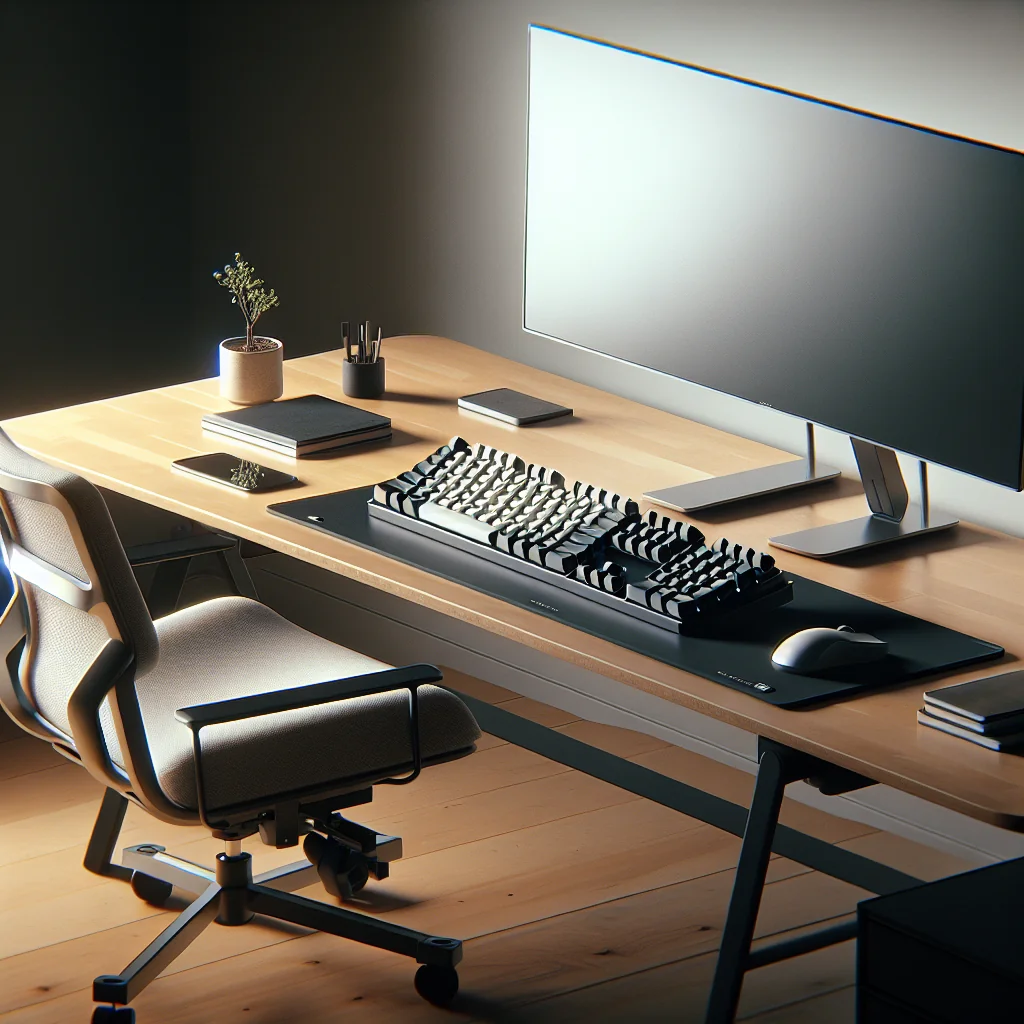
A mechanical keyboard for ergonomics can do more than feel satisfying to type on. It can support better posture, reduce strain, and fit neatly into a minimalist desk or home office setup. If you care about productivity, aesthetics, and comfort, your keyboard choice matters as much as your chair or monitor.
This guide explains what a mechanical keyboard is, how it affects ergonomics, and how to integrate one into a small, aesthetic, and productive desk setup at home.
Blueprint: How This Ergonomic Keyboard Guide Is Structured
This article starts with core concepts, then moves into practical choices, and ends with setup steps you can follow today. Use it as a reference while you plan or refine your desk.
Sections You Will Find in This Guide
The guide covers what mechanical keyboards are, how they affect posture, which features to pick, and how to arrange your full desk around the keyboard for daily comfort.
What Is a Mechanical Keyboard, in Simple Terms?
Most standard office keyboards use rubber dome or membrane switches. A mechanical keyboard uses individual mechanical switches under each key. Each switch has moving parts that give a clear feel and sound when pressed.
That clear feedback can help you type with less force, fewer mistakes, and less bottoming out on every keystroke. Over time, this can reduce finger fatigue and make long typing sessions more comfortable.
Mechanical keyboards also come in many sizes, from full-size to compact layouts that work better for a small desk setup or stacked monitor setup.
Why Mechanical Switches Feel Different
Mechanical switches activate at a set point before the key hits the bottom. This early activation lets you press more lightly once you learn the feel, which can ease strain on your fingers and hands.
Why a Mechanical Keyboard Helps Ergonomics
Ergonomics is about reducing strain and supporting natural posture. A mechanical keyboard supports this in several ways, especially in a home desk setup where you type for long periods.
The right mechanical board can lower the effort needed for each keypress, reduce awkward wrist angles, and let you keep your mouse closer to your body. That combination supports a more neutral arm and shoulder position.
Because mechanical keyboards are highly customizable, you can adjust switches, keycaps, and layouts to suit your hands and workflow, instead of adapting your body to a fixed keyboard.
Common Discomforts a Good Keyboard Can Ease
Many people report tired fingers, tight forearms, and sore shoulders after long days at a desk. A well-chosen mechanical keyboard can reduce overextension, cut down on hard impacts on each key, and help keep your shoulders from flaring out as you reach for a distant mouse.
Choosing Mechanical Keyboard Features for Better Posture
Not every mechanical keyboard is ergonomic by default. You need to match features to your body and desk layout. Think about hand size, typing style, and how much space you have on your desk.
Focus on three areas: switch type, keyboard size, and typing angle. These choices shape how your wrists, fingers, and shoulders feel across a full workday.
For a productivity setup, especially in a home office setup, these details often matter more than brand names or bright lighting effects.
Core Ergonomic Features to Prioritize
Look first at how heavy the keys feel, how wide the keyboard is, and whether you can adjust the angle. These factors have a direct impact on how your body aligns while you type and move the mouse.
Key Mechanical Keyboard Options for Ergonomics
The table below compares common ergonomic choices for mechanical keyboards and how they fit into a simple or aesthetic desk setup.
Mechanical keyboard options and ergonomic impact
| Feature | Ergonomic Benefit | Best For |
|---|---|---|
| Linear switches (smooth) | Lower force, smooth travel, less finger fatigue | Long typing days, quiet home office setup |
| Tactile switches (bump) | Clear feedback, helps avoid bottoming out | Touch typists, focus-heavy work with a timer |
| Clicky switches (loud) | Strong feedback that can discourage hard presses | Private offices where sound is not a problem |
| Compact layout (60–75%) | Mouse stays closer, shoulders more relaxed | Small desk setup, minimalist desk, stacked monitor setup |
| Low typing angle or flat | Reduces wrist extension and strain | Extended writing or coding sessions |
| Split or tented keyboard | More neutral wrist and forearm position | Users with wrist pain or tight shoulders |
Use this as a reference, then layer in your personal preferences for sound, feel, and aesthetics so the keyboard works well in your everyday computer desk setup.
Integrating a Mechanical Keyboard into a Small or Minimalist Desk
A mechanical keyboard can be the centerpiece of a minimalist desk, but only if it fits your space. On a small desk setup, every centimeter counts, especially when you also use a mouse, monitor, and perhaps a simple timer.
Compact mechanical layouts, like 65% or 75% keyboards, remove the number pad and some keys while keeping the main typing area. This frees space for the mouse and helps keep your arms closer to your body.
For a narrow desk, a compact keyboard plus a slim monitor stand can keep things clean and ergonomic without feeling cramped.
Managing Cables and Accessories Around the Keyboard
Route cables behind the desk or along the back edge so your wrists have clear space in front of the keyboard. Keep only daily tools within reach to avoid clutter that forces awkward arm angles.
Desk Setup Essentials Around Your Mechanical Keyboard
A mechanical keyboard works best as part of a full ergonomic and productivity setup. Think of it as one piece in a small system that supports focus and comfort.
- Mouse: A comfortable mouse that fits your hand shape can reduce strain.
- Monitor height: Align the top of the screen near eye level, especially with a stacked monitor setup.
- Chair and desk height: Aim for elbows at about a right angle, wrists floating just above the keyboard.
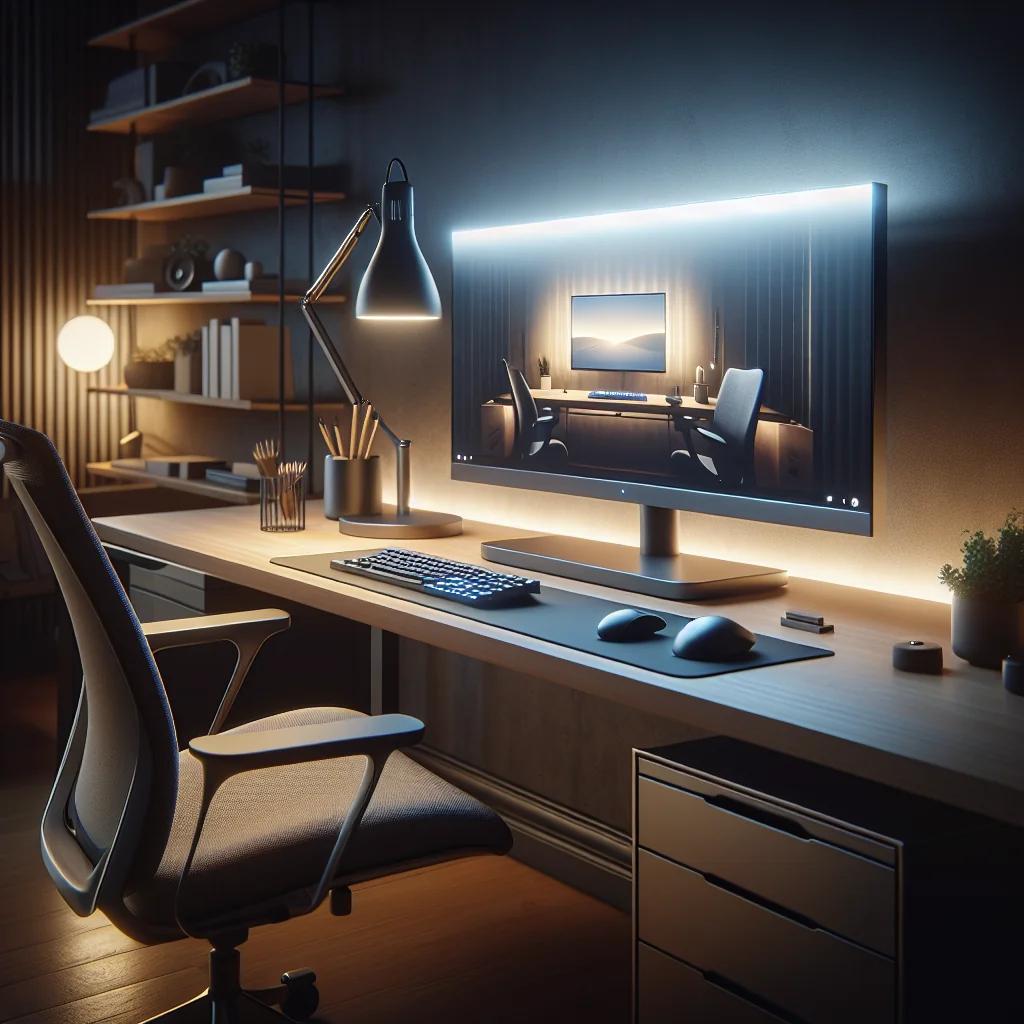
- Lighting: Use a monitor light bar or desk lamp for even light and less eye strain.
- Timer: A simple timer helps you break work into focused blocks.
These desk setup essentials work together with your mechanical keyboard so your body and eyes stay comfortable throughout each work session.
Simple Daily Habits to Support Your Setup
Stand up at least once an hour, relax your shoulders, and gently stretch your fingers. Short breaks let your body reset, which helps you get more value from your ergonomic keyboard and desk layout.
Aesthetic Desk Setup: Keycaps, Colors, and Clean Lines
Ergonomics and aesthetics can support each other. A space that looks calm often feels calmer to work in. A mechanical keyboard with soft-toned keycaps, such as sage green, can add color without cluttering a minimalist desk.
Keycap sets in muted tones pair well with light wood, white, or black desks, especially in a home office setup. They keep your desk from feeling clinical while staying easy on the eyes.
For an inspired desk setup, match your keycaps with a mouse pad, plant pot, or storage tray in similar tones, while still leaving enough empty space for your arms and keyboard to move freely.
Balancing Looks and Comfort
Choose keycap profiles and textures that feel good to type on, not just colors that look nice in photos. A slightly textured surface can help your fingers land accurately without extra effort.
Lighting Your Office for Comfortable Typing
Even the best mechanical keyboard for ergonomics cannot fix poor lighting. Good light reduces eye strain and helps you keep a relaxed posture instead of squinting or leaning forward.
To light an office well, start with soft, indirect light and then add focused light where you work. A monitor light bar can brighten your keyboard and desk without shining directly into your eyes.
In a simple desk setup, a single high-quality light bar or desk lamp is often enough, as long as it avoids harsh glare on the screen or shiny keycaps.
Positioning Lights Around Your Keyboard
Place lamps so the light falls from the side or above, not straight into your eyes. If your keycaps are glossy, angle the light to prevent bright reflections on the keys.
Mechanical Keyboard in a Productivity Setup: Timers and Flow
A mechanical keyboard fits naturally into a productivity setup that uses tools like a pomodoro-style timer or other focus timers. The rhythmic sound and feel of mechanical switches can help mark the start and end of focused blocks.
During a 25-minute focus session, try to keep your hands on the keyboard and mouse as much as possible. This reduces constant reaching and helps you stay immersed in the task.
Pairing a clear, tactile keyboard feel with structured time blocks can reduce mental fatigue, because your tools and routine stay consistent from session to session.
Using Keyboard Shortcuts to Reduce Strain
Learn common shortcuts for your main apps so you reach for the mouse less often. Fewer large arm movements mean less load on your shoulders across a full day.
How to Set Up a Desk Around Your Mechanical Keyboard
Desk setup matters as much as the keyboard itself. A good layout supports neutral body positions and smooth movement between keyboard, mouse, and screen.
- Place the keyboard directly in front of you, centered with your body and monitor.
- Keep the keyboard flat or with a slight negative tilt, rather than using tall rear feet.
- Position your chair so elbows are near a right angle and shoulders relaxed.
- Move the mouse close to the keyboard to avoid reaching out with your shoulder.
- Align the monitor so the top of the screen is near eye level and directly ahead.
- Use a footrest or adjust chair height so feet rest flat and stable.
- Clear non-essential items to maintain a simple desk setup that leaves room to move.
These steps work for a home desk setup, office desk, or compact desk and can be adjusted for small or large surfaces.
Fine-Tuning Your Mechanical Keyboard Position
Slide the keyboard slightly closer or farther away until your wrists can stay straight without bending up or down. Small changes in distance can make a clear difference in comfort by the end of the day.
Mechanical Keyboard and Mouse Pairing for Ergonomics
If you use a performance mouse, pair it with a mechanical keyboard that matches your hand movements. Both devices should fit your grip, not force you into awkward angles.
A compact keyboard size lets you keep a larger mouse closer, which is helpful if you use side buttons or scroll features often. This reduces side reaching and keeps your wrist straighter.
From an ergonomic view the key point is synergy: keyboard and mouse should support the same neutral posture so your shoulders and wrists stay relaxed.
Surface and Mouse Pad Considerations
Use a mouse pad large enough that you do not have to lift and reposition the mouse constantly. Place the pad level with the keyboard so your wrist does not bend at the edge of the desk.
Stacked Monitor Setup and Keyboard Positioning
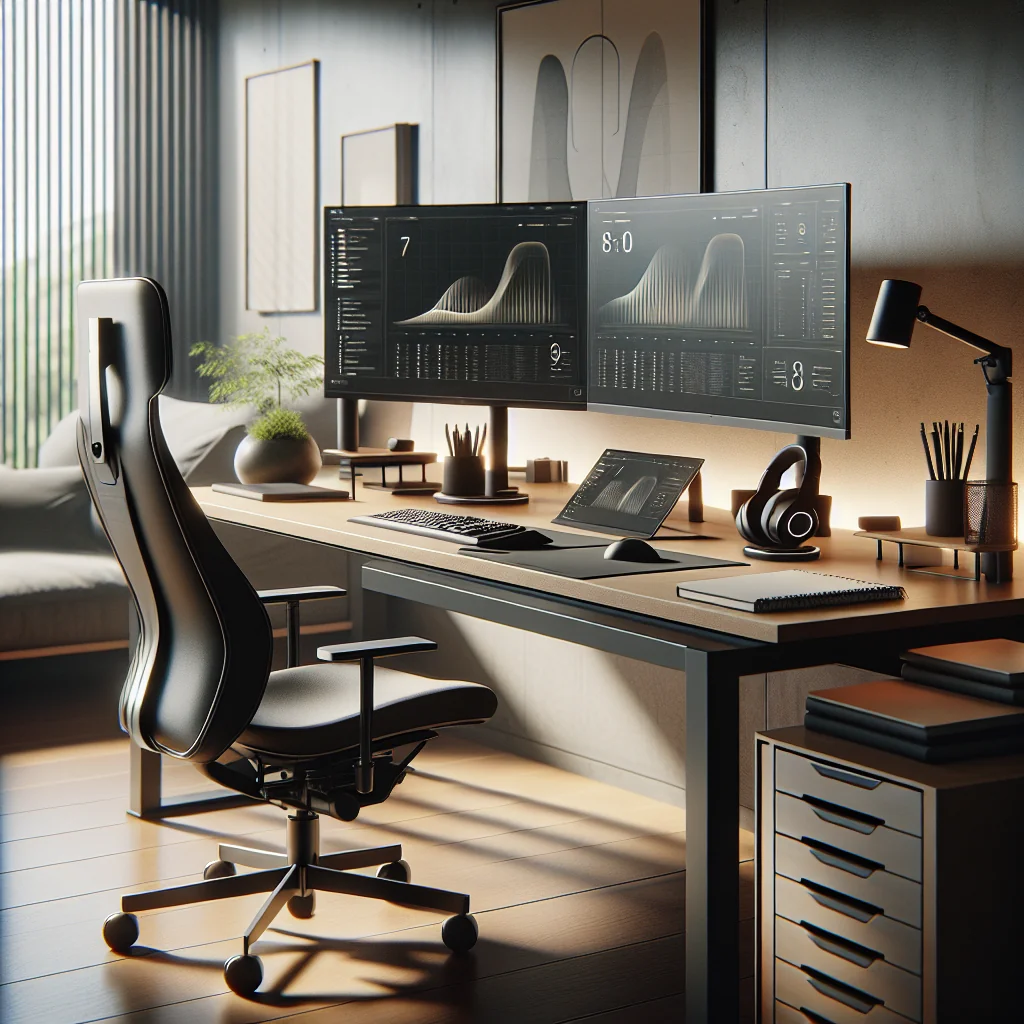
In a stacked monitor setup, your primary screen may be lower and the secondary screen higher. Your mechanical keyboard should align with the main screen you use for typing.
Keep the keyboard directly under the primary monitor so your neck stays mostly neutral during regular work. Use the upper monitor for reference material or secondary apps.
This arrangement works especially well with a minimalist desk because it keeps your main typing area clean while still giving you extra screen space.
Switching Focus Between Screens Safely
Turn your whole upper body, not just your neck, when you look at a side or upper monitor for longer periods. This habit reduces twisting and complements the ergonomic gains from your keyboard placement.
Simple and Inspired: Bringing Your Ergonomic Setup Together
A mechanical keyboard for ergonomics can be at the center of a simple desk setup that looks good and feels good. Focus on a keyboard that matches your hands, a mouse that supports your grip, and a monitor layout that respects your neck and shoulders.
Add lighting, calm-toned keycaps, and a focus timer to guide your work rhythm. You end up with an inspired desk setup that supports both productivity and long-term comfort.
By treating your mechanical keyboard as part of a complete computer desk setup, you can build a home office setup that stays comfortable, focused, and visually pleasing through every workday.